
Webinars are one of the most effective ways to generate qualified leads. Email marketing is how you turn those leads into customers. The problem? Most people run them in silos — manually exporting CSVs after every event, pasting contacts into mailing lists, chasing duplicates. The ClickMeeting and MailerLite integration fixes that automatically.
Table of Contents
📌 Key takeaways
- The integration works in both directions – export webinar attendees to MailerLite groups and import existing MailerLite contacts as invited participants in ClickMeeting.
- Three attendee categories sync automatically – registered users, those who joined the room, and those who attended the full event. Each group enables a different follow-up strategy.
- Setup takes just a few minutes – generate an API token in MailerLite, paste it into ClickMeeting’s integration settings, and you’re done. No coding required.
- One ClickMeeting organizer generated 81,018 leads in a single year – combining webinars with automated email follow-ups is how results like that happen.
- Contact sync is fully automatic – once configured, attendee data flows between platforms without any manual action after each event.
- You can test it for free – ClickMeeting offers a 14-day free trial with no credit card required.
What is the ClickMeeting and MailerLite integration — and why does it matter?
If you’re running webinars and email campaigns at the same time, you already know how tedious contact management can get. After every event you download a participant list, clean it up, import it into your email tool, assign tags or segments — and by the time that’s done, the follow-up window has already shrunk.
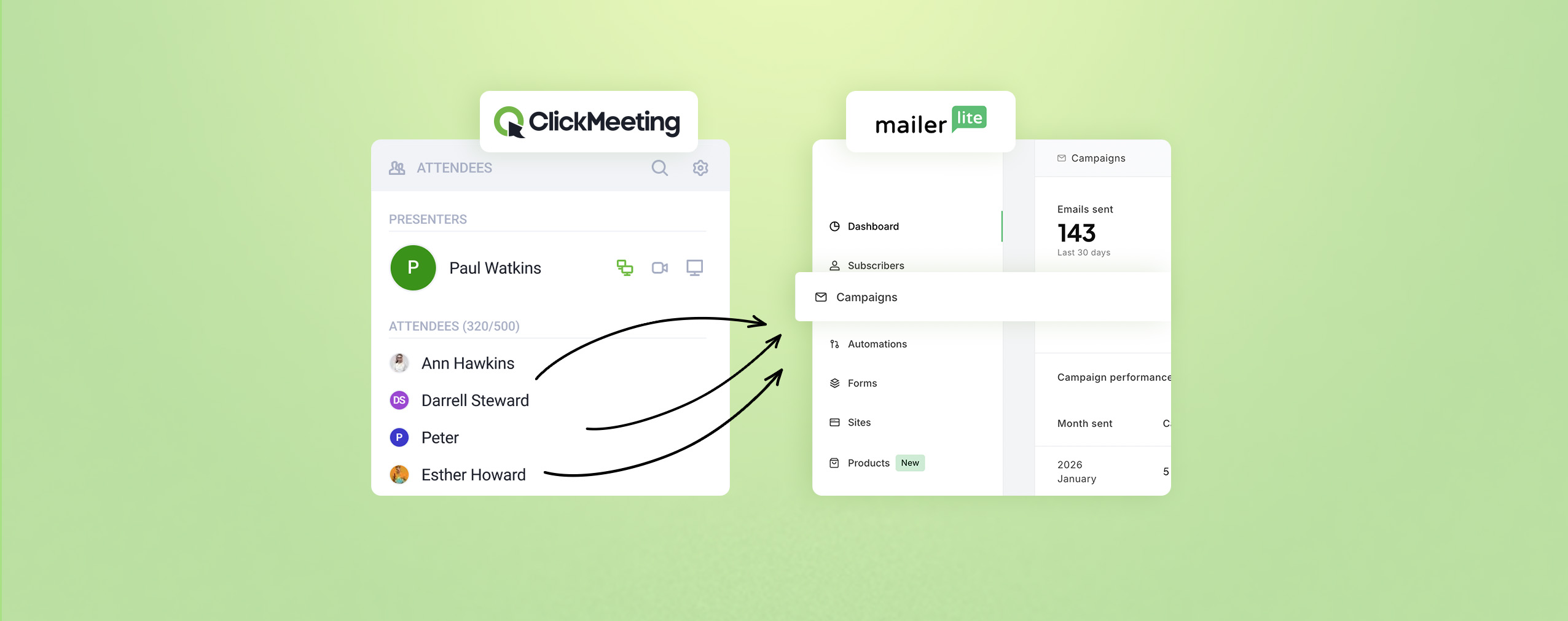
The ClickMeeting and MailerLite integration removes that friction entirely. It’s a native connection between both platforms that moves contact data automatically — no file exports, no copy-pasting, no risk of human error. And because it works both ways, you can also pull existing contacts from MailerLite directly into a ClickMeeting event without creating a separate registration flow.
How does data actually flow between the two platforms?
The logic is straightforward. ClickMeeting can push contacts to MailerLite. MailerLite can deliver contacts to ClickMeeting. You decide which direction (or both) makes sense for each event.
In practice, the flow looks like this:
- Someone registers for your webinar in ClickMeeting;
- Their details — name, email address — are automatically added to the MailerLite group you’ve selected;
- You can immediately trigger email sequences from that group: confirmation, reminders, post-event follow-ups;
- If you already have a list in MailerLite, you can import that group as invited attendees for any upcoming webinar in ClickMeeting.
This matters most for marketers and educators who want to build a consistent communication journey — from the first touchpoint with a webinar, through a nurture sequence, all the way to a conversion. The numbers back it up: one ClickMeeting organizer collected 81,018 leads in a single year. That kind of scale doesn’t happen with manual processes.
How do you set up the ClickMeeting and MailerLite integration?
The setup requires no technical knowledge and no developer involvement. Everything happens through the dashboards of both platforms. Here’s the full process, step by step.
How do you generate an API token in MailerLite?
The API token is what allows ClickMeeting to communicate securely with your MailerLite account. You generate it once — that’s it. Here’s how:
- Log in to your MailerLite account.
- Go to Integrations in the left-hand menu.
- Find the API section and click “Use”.
- Select Generate new token.
- Give the token a name — something like “ClickMeeting” — so you can identify it later.
- Allow all IP addresses (or restrict to ClickMeeting’s IPs if you prefer tighter control).
- Copy the generated API key — this is the only time you’ll see it in full.
Done. Keep the key handy — you’ll paste it into ClickMeeting in the next step.
How do you activate the integration in ClickMeeting?
With the API token copied, the rest takes under a minute:
- Log in to ClickMeeting and go to Account Settings.
- Open the Integrations tab.
- Find MailerLite in the list of available integrations and click to activate it.
- Paste the API key you generated in MailerLite.
- Click Authorize.
From this point on, both platforms are connected. When you create your next webinar, you’ll be able to select which MailerLite group should receive attendee data — and the sync will happen automatically.
Ready to connect your webinars with email marketing?
Try ClickMeeting free for 14 days — no credit card required. Set up the MailerLite integration and see how automation changes the way you work with leads.
How does exporting attendees from ClickMeeting to MailerLite work?
Once the integration is live, every webinar you create in ClickMeeting lets you assign a MailerLite group to receive contact data. But the integration goes further than a simple “add everyone to one list” approach — it separates attendees into meaningful categories from the start.
Which attendee categories are synced to MailerLite?
ClickMeeting doesn’t send a single undifferentiated list to MailerLite. Instead, it syncs three distinct participant categories, each reflecting a different level of engagement:
- Registered users — people who filled in the registration form, regardless of whether they showed up. This is your widest group, useful for re-engagement campaigns and last-minute reminders.
- Event attendees — people who actually joined the webinar. This group gets your follow-up with the recording, takeaways, and the next invitation.
- Those who joined — contacts who entered the webinar room. They may have left early, which makes them a distinct engagement signal compared to those who stayed through the whole session.
You can assign each category to a different MailerLite group and trigger entirely different email sequences for each. Someone who registered but didn’t show up gets a different message than someone who sat through a 90-minute session and engaged in Q&A. That kind of precision is what separates a thoughtful follow-up strategy from a generic “thanks for attending” blast.
What happens with contacts from paid webinars?
For paid events, the segmentation works slightly differently. All registered contacts are transmitted to MailerLite — without distinguishing between those who completed payment and those who registered but didn’t finalize. If separating these groups matters for your remarketing strategy, plan your MailerLite group structure accordingly before the event goes live.
“The best webinar organizers know that the event itself is only half the equation. What happens afterward — which messages the attendee receives, when, and with what content — is what determines whether they become a customer. Integration with email marketing tools isn’t optional anymore. It’s the baseline for serious webinar-based lead generation.”
Tomasz Bołcun
Brand Manager @ ClickMeeting
How does importing contacts from MailerLite into ClickMeeting help fill your webinar?
The reverse direction of the integration is often overlooked — and it’s genuinely useful. If you already have a subscriber base in MailerLite, you can invite those contacts to an upcoming webinar directly from ClickMeeting, without building a separate registration funnel from scratch.
When creating a new event in ClickMeeting, you’ll see an option to import contacts from a selected MailerLite group. Select the group, confirm — and those contacts are added to the event’s invited attendees list. You can also enable automatic confirmation emails, so invited participants receive event details right away.
When is it worth importing contacts from MailerLite?
This feature earns its place in a few specific situations:
- You have an existing subscriber list relevant to the webinar topic — instead of building a standalone registration page, you can invite them directly.
- You’re targeting a specific segment — customers on a particular plan, past training participants, or leads from a specific region. If the segment exists in MailerLite, it can become a webinar audience in minutes.
- You want to re-engage inactive subscribers — a webinar is a natural reason to reach out to contacts who haven’t interacted with your emails for a while.
- You’re running a content sequence where the webinar is the final step — invite exactly the people who completed the email journey, not your entire list.
What does a full webinar + MailerLite workflow look like in practice?
Let’s make this concrete. Imagine you’re a B2B SaaS company running monthly educational webinars for HR professionals. You have a MailerLite list of 4,000 contacts and an active ClickMeeting account. Here’s how the workflow plays out:
- One week before the webinar: you create the event in ClickMeeting and import your MailerLite group “HR Professionals – training interest”. 1,200 contacts receive an automatic invitation with a registration link.
- At the same time: the webinar registration page is publicly accessible — new contacts who find it organically sign up and immediately land in the MailerLite group “Registered – April Webinar”.
- On the day: ClickMeeting sends automatic reminders 24 hours before and 1 hour before the start. Attendance increases.
- After the event: attendees flow into the “Attended – April Webinar” MailerLite group. Those who registered but didn’t join go into a separate group. Both receive different sequences: attendees get the recording and a product offer, no-shows get a short re-engagement email with a recording link.
- Next month: the people who attended your April webinar become the first group you invite to May’s event. The cycle compounds.
This model doesn’t require extra headcount. It requires one-time setup and a thought-out group structure in MailerLite. The results speak for themselves: according to the State of Online Events 2025 report, the top ClickMeeting organizer generated 81,018 leads in a single year — with a record 22,880 registrations on a single event. That’s the kind of scale that only becomes possible when the webinar platform and email marketing tool work as one system, not two separate silos.
81,018
leads generated by one ClickMeeting organizer in a single year (State of Online Events 2025)
Build an automatic lead pipeline from your webinars
Start your free 14-day ClickMeeting trial and activate the MailerLite integration today. No credit card needed.
FAQ – ClickMeeting and MailerLite integration
Here are the questions that come up most often when configuring this integration. If yours isn’t here, reach out — we’re happy to help.
Is the ClickMeeting and MailerLite integration free?
Yes — the integration is included in your ClickMeeting subscription plan at no additional cost. You just need an active account on both platforms.
Can I connect ClickMeeting to multiple groups in MailerLite?
Yes. For each event, you can assign different MailerLite groups to different attendee categories — registered users, those who joined, and full attendees can each flow into separate lists. This lets you build segments based on engagement level from the moment the event ends.
How quickly do attendee contacts appear in MailerLite?
Synchronization is automatic — you don’t need to trigger it manually after each webinar. Contact data is transferred to the groups you configured when creating the event, without any additional steps on your end.
Does the API token from MailerLite expire?
No. The token remains valid until you manually revoke it or generate a new one in MailerLite. It’s worth storing it securely after the first setup, so you don’t need to regenerate it later.
Does the integration work with automated and on-demand webinars?
Yes. Contact sync works regardless of the event format — live, automated, or on-demand. Anyone who registers for an automated webinar will also be added to the designated MailerLite group.
What happens to contacts from paid webinars?
For paid events, all registered contacts are transmitted to MailerLite — without distinguishing between completed and incomplete purchases. If you need to segment by payment status, plan your group structure in MailerLite before the event launches.
Can I import my entire MailerLite database into ClickMeeting?
You can import contacts from a selected group — not your full database at once. This is actually good practice: webinars should be targeted at specific segments, not broadcast to every subscriber simultaneously.
Will imported MailerLite contacts receive automatic reminders?
Yes — as long as you’ve set up event automation in ClickMeeting. You can configure reminders 24 hours before the webinar, 1 hour before, and just before the start. These apply to all registered attendees, regardless of how they were added to the list.
Does setting up the integration require coding or API knowledge?
No. The entire setup involves generating a token in MailerLite’s dashboard and pasting it into ClickMeeting’s integration settings. No code, no developer, no technical background required — the whole process takes a few minutes.
Where can I find all available ClickMeeting integrations?
The full list is available in Account Settings under the Integrations tab. ClickMeeting connects natively with GetResponse, HubSpot, Zapier, Pipedrive, Moodle, Google Analytics, and many more tools — without writing any custom code.

 Loading...