
A blurry webcam, an echo nobody can fix, and a microphone that hears the air conditioning instead of the speaker — bad video conferencing equipment ruins good meetings. The right hardware does the opposite: it disappears, and people just talk. This guide covers the best video conferencing equipment for every space, from a single webcam and headset to an all-in-one video bar for the conference room, and explains how to choose gear that works with any platform.
|
📌 Key Insights
|
What is video conferencing equipment?
Video conferencing equipment is the hardware that captures and plays back audio and video so people in different locations can meet face to face. At its simplest it is the camera, microphone, and speakers built into a laptop. At its most involved it is a full camera system with a pan-tilt-zoom lens, a ceiling microphone array, and a wall-mounted touch display. Everything in between is a question of how many people share the room and how polished you need the video experience to be.
The hardware is only half the equation, though. The equipment captures the meeting; the platform delivers it. To see how video conferencing fits among all the ways to meet remotely, our complete guide to what teleconferencing is and how it works covers the full picture.
What equipment do you need for video conferencing?
Four things carry every video conference: a camera, a microphone, speakers, and a reliable connection. Get those right and you have a meeting people will happily join. Skimp on any one, and no amount of spending elsewhere will rescue it. Here is what each conferencing device does and where to start. 
What camera or webcam should you use?
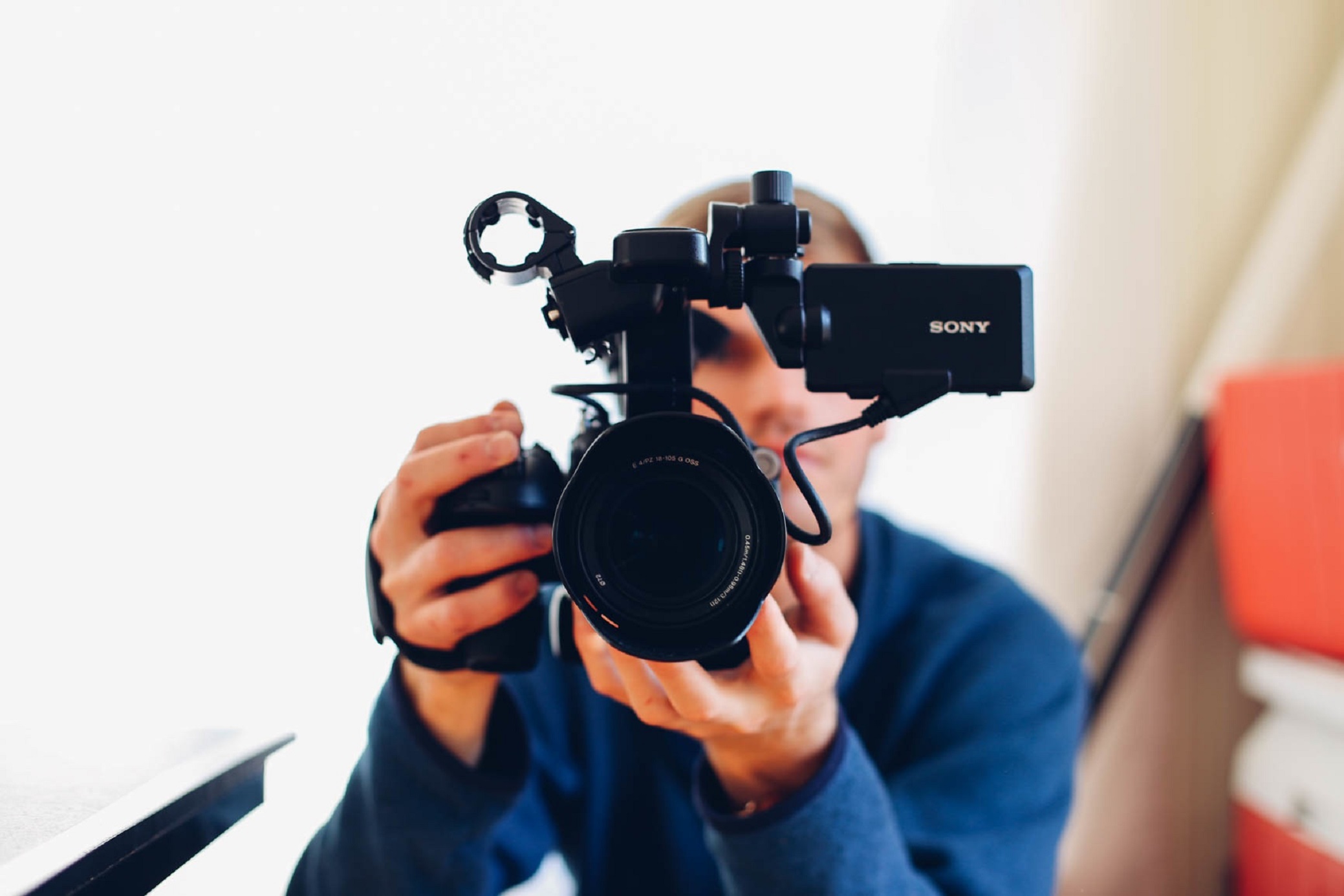
The camera sets the tone of the call, because it is what everyone sees. A laptop’s built-in camera is fine for occasional use, but a dedicated USB webcam — ideally 1080p, or 4K if image quality matters — delivers a sharper, better-lit picture. For shared spaces, conference cameras with a wide-angle or ultra-wide lens capture the whole table, and an AI camera can auto-frame whoever is speaking. Standalone webcams suit a desk; a dedicated video conferencing camera and a full video conferencing system suit a boardroom. A 4K USB webcam on the monitor and a PTZ rally camera for the boardroom sit at opposite ends of the same scale.
Why does the microphone matter most?
Audio is the part people notice when it goes wrong, so the microphone deserves more attention than the camera. A headset or a USB microphone beats a laptop’s built-in mics every time, because it sits closer to your mouth and rejects background noise. Noise-cancelling earbuds or true wireless buds work well for mobile staff, while a meeting room needs pro audio — a speakerphone or a microphone array that delivers seamless audio from every seat and cancels echo, so a group of six sounds as clear as one person.
What about the display and content sharing?
Speakers and a screen complete the loop. Headphones or stereo speakers keep audio clean, while a larger touch display or a wall-mounted screen makes a shared room far easier, so everyone sees faces and shared content at once. For content sharing, an HDMI or USB-C connection lets a presenter put a laptop on screen, and wireless options like Barco ClickShare allow content sharing with no cable at all. A digital whiteboard rounds out the video collaboration tools for sessions that need sketching, not just talking.
|
Got a webcam and a headset? That is all you need to start. Spin up a meeting room in the browser and test your setup in minutes. |
What is an all-in-one video bar?
An all-in-one video bar packs a camera, microphones, and speakers into a single device, so one unit handles a whole room instead of three separate pieces of gear. It is the simplest route to a proper conference room setup: mount it under the display, plug it in, and the all-in-one video conferencing hardware does the rest. Popular all-in-one collaboration devices include the Logitech Rally Bar and Logitech MeetUp (sold under the Logi brand), the Poly Studio range (formerly Polycom), and Yealink bars, with the Logitech Board Pro adding a touch panel for content.
What makes these collaboration devices so easy to live with is that they are largely plug and play and platform-agnostic. Many are certified for Microsoft Teams and Zoom — deployed as a Microsoft Teams Room or Zoom Room — and the same all-in-one collaboration device works just as well with Webex, Google Meet, or a browser-based platform. A touch controller like the Logitech Tap IP starts and joins calls with one press, and BYOD or BYOM (bring your own meeting) modes let a guest run their own software through the room’s camera and audio. A USB-C dock or USB C cable connects a guest laptop in seconds, which makes this kind of room solution genuinely flexible.
How do you choose equipment for different room sizes?
Match the gear to the space, not the other way around. The same camera that flatters one person at a desk will leave a boardroom looking distant and tinny. Sizing your equipment to the room is the single biggest factor in whether a call feels effortless or awkward.
What works for a home office or huddle room?
For one to three people, keep it simple and inexpensive. A quality USB webcam, a headset or wireless earbuds, and your existing speakers cover almost every call from a home office, an in-office desk, or any hybrid workspace. A small huddle room benefits from a compact all-in-one such as the Logitech MeetUp — a conferencing system for small spaces that combines camera, mic, and speaker, so there is one cable instead of three. This is the sweet spot where a modest video conferencing solution delivers a clean video conferencing experience for everyday virtual meetings without a big budget.
What does a large conference room need?
A large conference room is a different problem. Here you want a PTZ or AI camera — a Logitech Rally Camera or similar — that can frame the whole table or even capture 360-degree video, a microphone array or several ceiling mics so no voice is lost, and a large or dual touch display for faces and shared content. These AV setups are usually installed and calibrated as part of the room design, because the distance between speaker and microphone is what defeats consumer-grade audio devices. Wireless content sharing and a Cisco Board Pro or comparable all-in-one keep the room tidy and lift the whole conference experience.
|
“ The mistake I see most often is teams spending the whole budget on a beautiful 4K camera and forgetting the microphone. Nobody leaves a call complaining the picture was a little soft — they leave because they could not hear half of what was said. Fix audio first, then video, then the screen, and only buy a room system when the room genuinely needs one. A surprising number of great meetings run on a decent webcam, a headset, and a platform that simply does not drop. The gear should be the part you stop thinking about. Tomasz Bołcun, Brand Manager @ ClickMeeting |
Do you need expensive hardware to start?
No — you almost certainly already own enough to run a professional video call today. A modern laptop has a usable camera, microphone, and stereo speakers, and adding a good headset solves most audio problems on its own. The temptation is to treat conference equipment as the thing standing between you and good meetings, when in practice the platform and your internet connection matter far more.
This is where reliability beats spec sheets. The State of Online Events 2025 report shows the average online event now runs 102 minutes with 75 attendees — and across two hours with dozens of people, a stable connection and conference software that does not crash do more for the experience than an extra megapixel ever could. Buy the video bar when your meetings outgrow the webcam, not before.
Why does the platform matter as much as the hardware?
Because the best room devices in the world are wasted if the platform drops the call, makes attendees install software, or caps your audience. The hardware captures the meeting, but the platform carries it to everyone else, records it, and scales it from a two-person chat to a thousand-person webinar. That is the part no camera system can fix.
ClickMeeting runs entirely in the browser, so it works with whatever camera and microphone you already have — webcam, headset, or a full Logitech or Poly video bar — with no download and no driver headaches. It scales to 10,000 participants, records automatically, and adds screen sharing, polls, and Q&A on top of plain video. Data is hosted in Europe under full GDPR compliance, which matters when calls involve clients or sensitive information. If you are also weighing which tool to run on your hardware, our comparison of the best video conferencing software for business goes deeper, and for voice-only setups our guide to audio conferencing covers the lighter end.
Frequently Asked Questions
Here are answers to the most common questions about video conferencing equipment and how to set it up.
What equipment do I need for video conferencing?
At minimum you need a camera, a microphone, speakers or headphones, and a stable internet connection. A laptop covers all four for one person. For a shared room, add a dedicated conference camera and microphone, or a single all-in-one video bar that combines them.
What is the best video conferencing equipment for a home office?
A 1080p or 4K USB webcam plus a headset or noise-cancelling earbuds is the best value for a home office. It improves both image and audio over a laptop’s built-in hardware. A compact all-in-one like the Logitech MeetUp suits a small shared space.
What is an all-in-one video bar?
It is a single device that combines a camera, microphones, and speakers for a meeting room. Examples include the Logitech Rally Bar, Poly Studio, and Yealink bars. They are mostly plug and play and certified for platforms like Microsoft Teams Rooms and Zoom Rooms.
What is the most important piece of video conferencing equipment?
The microphone. People tolerate a soft image but quickly lose patience with echo, dropouts, or background noise. A headset or a dedicated speakerphone with noise cancelling is the single best upgrade most people can make.
What does a large conference room need?
A large room needs a PTZ or AI camera, a microphone array or ceiling mics, and a large or dual touch display. These AV systems are usually installed and calibrated, because the distance between speakers and microphones defeats consumer gear.
Does video conferencing hardware work with any platform?
Most modern devices are platform-agnostic. The same webcam, video bar, or room system works with Zoom, Microsoft Teams, Webex, Google Meet, and browser-based tools like ClickMeeting. BYOD and BYOM modes let guests run their own software through the room’s camera and audio.
How do I stop echo and background noise on a call?
Echo comes from open speakers feeding back into the microphone, so a headset or a speakerphone with echo cancellation fixes it in most cases. For background noise, look for devices with noise-cancelling mics. A meeting room speaker system is built to prevent both.
How much internet bandwidth do I need?
A stable connection matters more than raw speed. A few megabits per second handles a one-to-one HD video call, and most home or office broadband is enough. Reliability and low latency affect quality more than peak bandwidth.
Do I need to install software to use my equipment?
It depends on the platform. Browser-based tools like ClickMeeting work with your existing camera and microphone with no download. That removes driver issues and lets attendees join from a link instead of installing an app.
How does ClickMeeting work with my equipment?
ClickMeeting runs in the browser and uses whatever camera and microphone you already have, from a USB webcam to a full video bar, with nothing to install. It scales to 10,000 participants, records automatically, and hosts data in Europe under GDPR. A 14-day free trial lets you test your setup first.
|
Put your existing equipment to work — webcam, headset, or full video bar. Host audio and video meetings for up to 10,000 people, straight from the browser. |