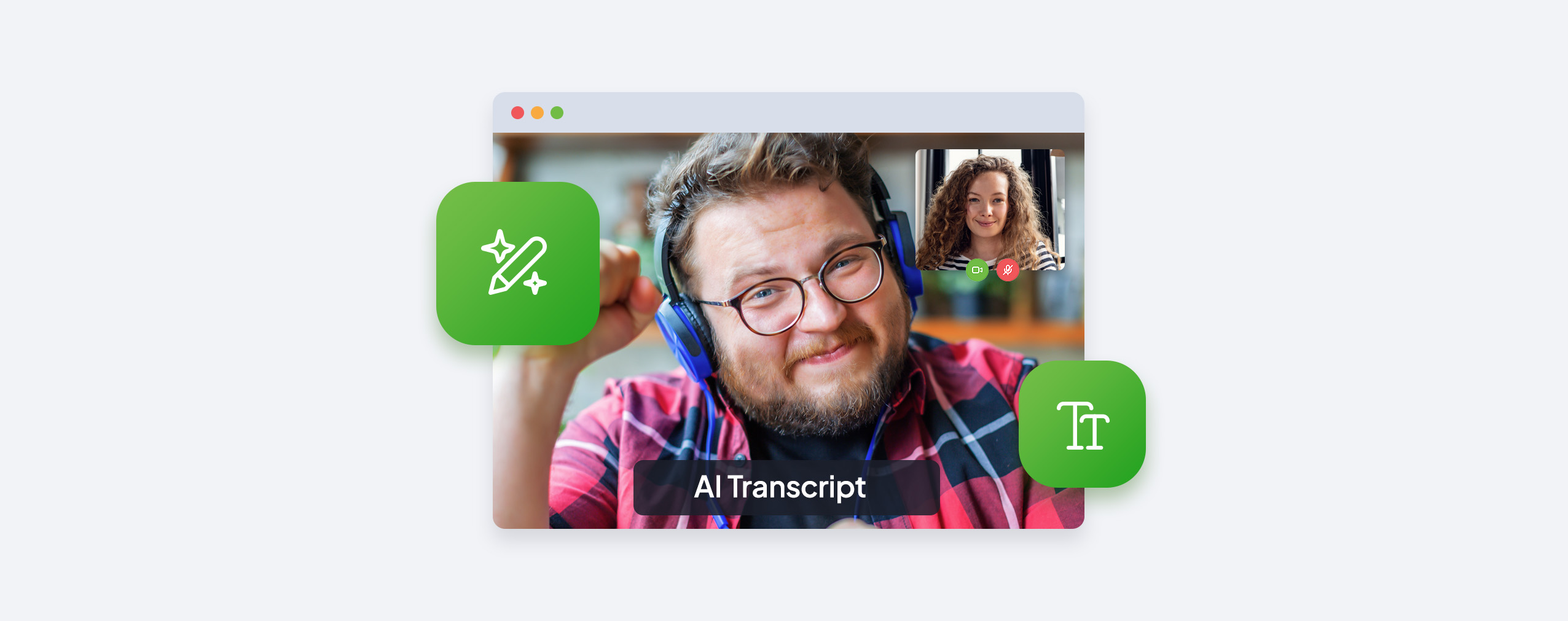

Do you waste a lot of time writing summaries of your meetings and webinars? AI summaries in ClickMeeting solve this problem. With just one click, you can prepare notes containing all the most important information. In addition, you will also receive a transcript of the recording.
Table of Contents
Key information
The new AI Summaries feature in ClickMeeting is your personal assistant that never sleeps and always remembers the details:
- Double the value with one click: generate a full transcript and professional notes from your event at the same time
- Smart summaries: AI extracts the most important topics, theses, and decisions, omitting technical digressions and irrelevant fragments
- Ready to act: you receive specific conclusions, insights, and recommendations for follow-up actions that you can implement immediately
- Full automation: an email notification informs you when the documents are ready to download in the Account Panel.
- Practical format: you download both documents as .txt files, ready for further use
Why do you need transcripts and notes from your webinars and meetings?
Do you host webinars and meetings regularly? How many hours of recordings do you already have in your archive? You probably have dozens, or maybe hundreds, of hours of valuable content that… is just sitting there.
This knowledge can be used as:
- Material for blog articles
- Content for social media
- Excerpts for online courses
- A knowledge base for your team
- Starting points for future webinars
But who has the time to listen to an hour-long recording and note down all the important points? After all, it would take more time than the event itself. 
That’s exactly why the AI Summary feature was created in ClickMeeting.
How does the AI Summary feature work?
Forget about complicated processes and multi-step configurations. The ClickMeeting team has designed this feature to be as easy to use as possible.
After the webinar is over, go to your Account Panel and navigate to the recordings section. There, next to each recording, you will find an “AI Summaries” button. One click – and the process starts.
What happens in the background? AI analyzes the entire recording and creates two documents in parallel:
- A full transcript of the event
- Smart notes with key points
The transcript is the basis on which AI builds the summary. This ensures that the notes are accurate and based on the full context of the speech.
When the documents are ready, you will receive an email notification. So you don’t have to check every few minutes to see if the process is complete. The system will notify you itself.
You return to the Account Panel, where the “AI Summaries” button has changed its function. Now, when you click on it, you open a small menu with two options to choose from:
- Download transcript
- Download note
You can download one document, the other, or both at once. Everything is in .txt format, ready to be copied, edited, or further processed.
Why do you need a webinar transcript?
A full transcript of your webinar is a goldmine of opportunities. Here are some practical uses you may not have thought of:
Content marketing on steroids
An hour-long webinar is about 7,000-10,000 words of text. That’s enough material for 5-7 extensive blog articles. You don’t have to write them from scratch: you already have the content ready, just divide it by topic, rewrite it in blog style, and voilà. You have content for several weeks.
Quotes for social media
Scroll through the transcript and pick out the most interesting parts—the ones where you said something particularly insightful or elicited lively reactions from participants. Each such fragment is a ready-made post for LinkedIn or Facebook.
Training materials
Do you conduct regular training sessions for your team? Transcripts from webinars can become part of your internal knowledge base. A new employee can read the key passages in 15 minutes instead of watching an hour-long recording.
SEO and accessibility
Search engines don’t index video, but they do index text. By publishing the transcript along with the recording on your blog, you increase the chances that someone will find your materials through Google. Plus, you give an option to people who prefer to read rather than watch.
Analysis of your own speeches
By reading the transcript, you can notice your linguistic habits – maybe you say “um” too often, repeat certain phrases, or dwell on side issues for too long. This is invaluable information for improving future presentations.
AI notes: more than just a summary
If it were just a matter of shortening the transcript, a simple algorithm would suffice. But AI Summaries in ClickMeeting are much more sophisticated than that.
The system analyzes your event using an advanced prompt that extracts three key elements:
1. Event summary
You won’t get a chronological transcription of “first I talked about this, then that.” Instead, AI identifies:
- The most important topics that came up throughout the event
- Key points that you conveyed to participants
- Specific decisions or conclusions that you reached together
- Important information that participants should remember
All this without technical digressions and irrelevant details. You get the essence of the event in a condensed form.
2. Conclusions
This is the part that turns notes from a passive record into an active development tool. AI captures:
- The most important observations from the event
- Insights that emerged during the discussion
- Problems or challenges that you identified during the webinar
So you have not only “what we said,” but also “what comes out of it.”
3. Recommendations
The most valuable part of any summary. AI suggests:
- Specific actions worth taking after the event
- Suggestions for topics for further exploration
- Ideas for follow-ups with participants
- Recommended next steps
In other words, you get a ready-made action plan, not just a report on what happened.
Expert opinion
“The most valuable insights are often lost in the flood of information during a webinar. Participants take quick notes, while you, as the host, focus on the presentation and answering questions. The AI Summary feature is like having the perfect assistant who remembers everything and then organizes it into a logical whole. You no longer have to lose any valuable thoughts—the system will record everything for you and present it in an accessible form.”
Tomasz Bołcun, Brand Manager @ ClickMeeting
How to use AI notes in practice?
Theory is one thing, but how can you specifically use AI Summaries in your daily work? Here are some proven scenarios:
For trainers and educators
Are you running a course consisting of a series of webinars? After each module, generate a summary that you can:
- You send to participants as a reminder of key points
- You use to create supporting materials
- You transform into a knowledge test quiz
- You archive as a knowledge base for future editions of the course
Time saved? Probably 2-3 hours after each webinar, which you previously spent manually taking notes and organizing materials.
For consultants
Are you conducting a strategy session with a client? Instead of frantically taking notes during the conversation (and losing eye contact), you can focus fully on the client. Then:
- Generate a transcript and notes
- Use them to create a professional report
- Send the client a summary with specific recommendations
- Have documentation that you can refer back to in a month or a year
For internal teams
Do you organize regular team meetings or town halls? AI summaries allow you to:
- Share key findings with people who were unable to attend
- Create a database of decisions and findings from subsequent meetings
- Track progress in implementing previous recommendations
- Onboard new team members by giving them access to discussion history
For content creators
Do you record a podcast or do a live stream about your expertise? Each such event is potentially:
- Several LinkedIn posts with key quotes
- A newsletter with the most important points for subscribers
- An expert article on your blog
- Excerpts to use in future promotional materials
How to start using AI Summaries?
You don’t need any additional training or special configuration. If you have a ClickMeeting account and host webinars, this feature is available to you.
After the event:
- Log in to the Account Panel
- Go to the recordings section
- Find the recording you are interested in
- Click the “AI Summaries” button
- Wait for the notification email (the system works in the background)
- Return to the Account Panel and download the finished documents
The whole process takes just a few clicks on your part. AI does the rest.
A few practical tips:
- Generate summaries regularly; don’t let dozens of recordings pile up without analysis
- Download both documents—even if you think you only need the notes now, the transcript may come in handy later
- Archive your summaries in an organized manner, e.g., in a cloud folder with a logical name (date + webinar topic)
- Don’t treat AI notes as the final version – they are an excellent starting point that you can further refine to suit your needs
Summary: it’s time to stop wasting the potential of your webinars
The AI Summary feature in ClickMeeting solves the problem of preparing notes yourself once and for all. Each webinar becomes not just a one-time event, but a source of content that you can use in dozens of different ways.
Next time you finish a webinar, don’t let the recording just disappear into the archive. Generate an AI summary and see how much extra value you can get out of it.
FAQ – Frequently asked questions
1. Is the AI Summary feature available to all ClickMeeting users?
Yes, the feature is available to all ClickMeeting users who have event recordings saved in their Account Panel. Just find the recording you’re interested in and click the “AI Summary” button.
2. How long does it take to generate transcripts and notes?
The generation time depends on the length of the recording. Shorter events (30-45 minutes) can be ready in a few minutes, while longer webinars may take a little longer. You will receive an email notification when the documents are ready for download.
3. Can I generate notes without a transcript?
No, the system always generates both documents at the same time. The transcript is the basis on which the AI creates notes, so it is impossible to create a summary without a complete record of the speech.
4. In what format do I download the documents?
Both documents—the transcript and the notes—are downloaded as .txt files. You can easily open them in any text editor, copy the content, or import them into other tools.
5. Can I edit the generated notes and transcript?
Of course! After downloading the .txt files, you can freely edit their content, adjust the formatting, or add your own comments. The documents serve as a starting point that you can further refine.
6. How accurate is the transcription?
AI technology is constantly evolving, and the accuracy of the transcription is really high, especially when the webinar audio is of good quality. There may be isolated errors, especially with specialized terminology or rare proper names, but the overall quality allows for practical use of the document.
7. What do AI notes contain—is it just a shortened transcription?
No, it’s much more than that! The notes contain: (1) a summary of the most important topics, theses, and decisions, omitting digressions, (2) conclusions—key observations and insights from the event, (3) recommendations—specific suggestions for follow-up actions and next steps.
8. Can I generate summaries for older recordings?
Yes, the feature works for all recordings available in your Account Panel, regardless of when they were recorded. So you can also analyze archived events.
9. How many times can I generate summaries for the same recording?
After the documents are generated for the first time, the button changes its function to a download menu. If for some reason you need to generate summaries again, please contact ClickMeeting support.
10. Does the feature work in Polish?
Yes! AI technology works very well with the Polish language, both for transcription and for generating smart notes. The system recognizes the Polish context and creates summaries in a way that is natural for our language.


 Loading...