A virtual classroom is an online teaching space where an environment where teachers and students connect, collaborate, and learn in real-time — no matter where they are. Whether you run university lectures, corporate training, or coaching sessions, your virtual classroom platform determines whether participants stay engaged or mentally check out after ten minutes. Here’s everything you need to build a successful virtual classroom with ClickMeeting.
|
📌 Key Insights
|
Education has moved online — and the numbers confirm it. According to our State of Online Events data, 43% of all events held on ClickMeeting are educational: 31% are training courses, and 12% are structured classroom sessions including lessons, lectures, and exercises. The virtual classroom is no longer a contingency. For a growing number of educators, it is the primary teaching environment. 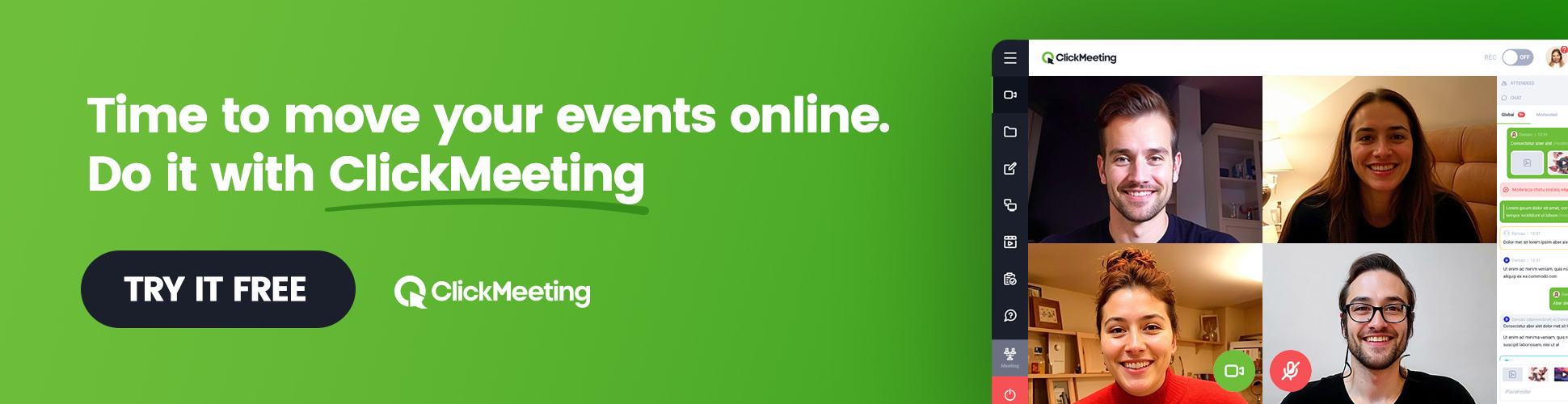
Table of Contents
What Is a Virtual Classroom — and How Does It Differ from a Video Call?
A virtual classroom is an online teaching hub: a structured digital space where educators deliver instruction, students participate actively, and learning resources are shared within a single platform. That’s the key distinction — a virtual classroom is an online environment with purpose-built structure, not just a group video call.
A classroom is an online teaching and learning environment that mirrors the functions of a physical space: live presentation, student participation, assessment, group collaboration, and course management. Outside of a traditional classroom, these interactions require deliberate design. The right virtual classroom software provides that design.
Platforms like Zoom and Google Classroom offer basic video conferencing, but educators who need structured teaching and learning — with assessment tools, group rooms, whiteboard space, and analytics — need a platform built specifically for education. That’s where ClickMeeting sits.
Virtual Classrooms vs. the Traditional Classroom Setting
The traditional classroom groups everyone in one physical classroom setting — the educator at the front, students seated around them. That model works, but it comes with hard limits: location, room capacity, scheduling, and the cost of classroom training repeated across multiple sites or cohorts.
An online virtual class removes those limits. Students around the world can join the same session without travel. An educator can reach learners they could never have served in-person. And with the right tools, the advantages of virtual instruction — flexibility, recorded content, automated reminders, live analytics — compound over time in a way the in-person classroom simply cannot.
The catch is that virtual learning only delivers those advantages when the platform provides genuine interactivity. A virtual class that’s just a presenter talking at a camera is worse than either format. The classroom environment has to be built intentionally — and that’s what the rest of this guide covers.
|
Ready to set up your virtual classroom? Try ClickMeeting free and see every tool in action — no credit card required. |
Core Virtual Classroom Features in ClickMeeting
ClickMeeting’s virtual classroom solution offers a range of tools built around how educators actually teach — not how developers imagine they might. These virtual classroom features cover every stage of a session: preparation, delivery, assessment, and follow-up. Here’s what’s available.
Edu Mode: A Structured Learning Environment for Any Class Size
Every educator who has run a virtual class with a larger group faces the same problems: cameras off, students distracted by each other, no natural floor management, and an environment where students drift rather than focus. Edu Mode was designed to fix this at the structural level.
Edu Mode creates a one-way visibility model within the virtual classroom: the educator sees all attendees and their camera feeds, while each learner can only see the educator — not their classmates. When the educator wants a specific student or group to speak, they invite them to the floor. Only then can the rest of the classroom hear that student’s contribution.
- Full educator visibility — students can see who’s present and paying attention without disruption.
- Reduced camera anxiety — students can see only the educator, removing the social pressure of performing in front of peers.
- Controlled participation — allowing students to speak only when invited keeps sessions focused and manageable.
This approach reflects how a well-run physical classroom actually works — the educator controls the floor — and brings that structure into the online learning environment without requiring students to install anything or navigate complex settings. Students can see what they need to see, hear what matters, and stay focused on the learning experience rather than managing their own on-screen presence.
Online Meetings: Real-Time Video Conferencing for Groups Up to 40
Not every virtual classroom session calls for a lecture format. For practical exercises, seminars, language classes, or collaborative workshops, the online meeting format gives educators and students full two-way conferencing — everyone on camera, everyone able to speak, everyone present in a shared virtual space.
In meeting mode, the virtual classroom supports up to 40 participants in real-time video conferencing. This is the format that makes it genuinely easier for students to contribute — the interaction feels closer to an in-person classroom seminar than a traditional broadcast webinar. It’s also where ClickMeeting’s video conferencing capabilities shine: up to 8 simultaneous camera streams, stable browser-based performance, and no download required for participants.
The choice between meeting and webinar format depends on class size and purpose. For a virtual classroom session focused on group discussion or practical skills, meeting mode is the right call. For a lecture reaching hundreds of online students, webinar mode scales further without losing control.
Interactive Tools and Features: What the Virtual Classroom Provides
The virtual classroom provides value through its tools — and ClickMeeting’s event room offers a genuinely broad set of them. These aren’t bolt-ons; they’re built into every session. A virtual classroom that offers a range of tools for active participation produces measurably better outcomes than one that relies solely on passive video delivery.
Here’s what’s available within the virtual classroom:
- Presentation — upload PowerPoint slides, PDFs, graphics, spreadsheets, or video files. Your multimedia resources are all accessible without switching applications.
- Screen sharing — both the educator and students can share their screens. If you assign homework and want to review it in the next session, a student can share their screen directly with the class.
- Video playback — play YouTube clips in the classroom without participants needing to leave the session or open a new tab.
- Whiteboard — sketch diagrams, annotate content, and brainstorm collaboratively. The whiteboard in ClickMeeting has no page limit — more on this below.
- Chat — students ask questions without interrupting the flow. Questions accumulate for a structured Q&A segment rather than fragmenting the session.
- Polls and surveys — run live comprehension checks, collect mid-session feedback, or conduct formal assessments without leaving the virtual classroom.
These tools and features make a meaningful difference to the classroom environment. The virtual classroom enhances what would otherwise be a passive viewing experience into structured, documented, two-way instruction.
Download your free guide to the virtual classroom
Secure Online Class: Keeping Your Virtual Classroom Protected
Security is a genuine concern for anyone running an online class — particularly when working with younger learners or sharing sensitive training content. ClickMeeting gives educators control over who enters each session before it starts.
You can protect any event with a password or a single-use access token that expires the moment it’s used. This makes it considerably easier for students to access their designated session without leaving the room open to uninvited participants. The Lock Room feature takes this further — once all expected attendees have joined, the educator seals the session from the inside. No new entrants can join, and the session proceeds without risk of disruption.
AV Tester: Verify Your Hardware and Software Before Going Live
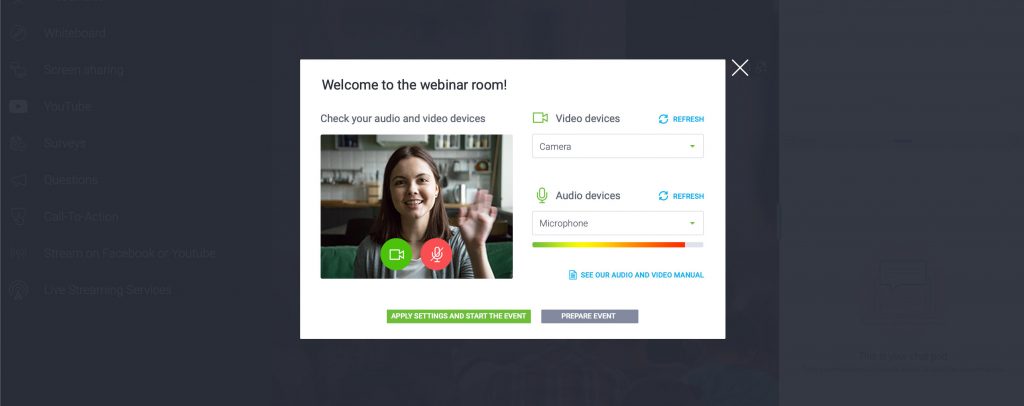
Technical problems during a virtual classroom session break concentration and erode credibility. Checking your hardware and software setup before each session takes two minutes and prevents most of them. ClickMeeting’s AV Tester launches as a pop-up when you enter the event room — it checks whether your webcam and microphone are detected, tests audio levels, and shows you exactly how you’ll appear to participants before you go live.
This is particularly useful when teaching on unfamiliar hardware or switching between rooms. Video conferencing software that doesn’t surface these issues upfront forces educators to troubleshoot mid-session. ClickMeeting surfaces them before the first student joins.
|
“ When we look at how educators use ClickMeeting, the most consistent pattern we see is that the ones running successful virtual classroom sessions plan their room setup in advance — layout, content, access settings — and treat every tool as a deliberate choice rather than a default. The educators who get the best engagement aren’t necessarily the most experienced with technology. They’re the ones who use the platform intentionally. That’s why we built features like Edu Mode and layout synchronisation: to give educators control so they can focus on teaching, not on managing the interface. Tomasz Bołcun, Brand Manager @ ClickMeeting |
The ClickMeeting Whiteboard: Infinite Space to Think and Teach
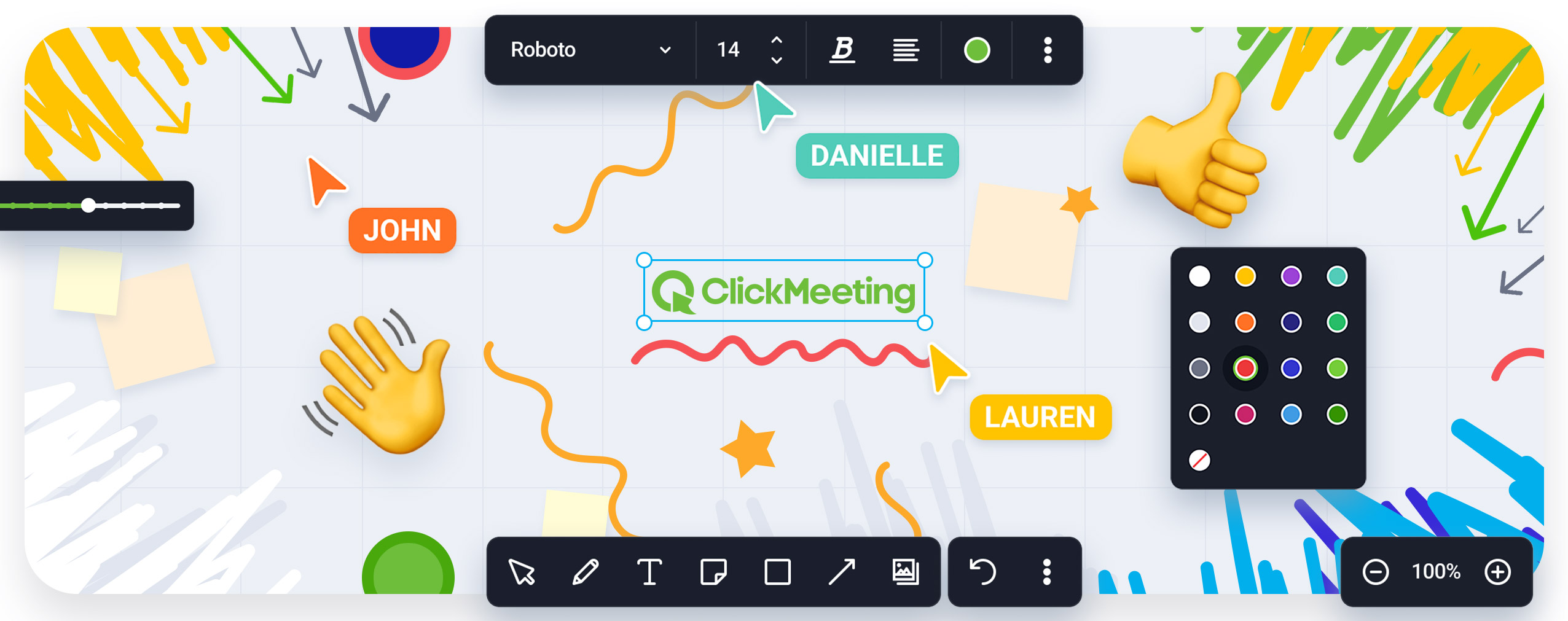
The whiteboard is one of the oldest tools for teaching and learning — and one of the easiest to lose in the transition online. Most virtual classroom platforms cap the whiteboard at a fixed number of pages, forcing educators to either plan around the limit or break their session flow to reset. ClickMeeting removes the cap entirely.
The main virtual whiteboard in ClickMeeting is unlimited. You scroll and draw as far as the session requires — diagrams, timelines, concept maps, annotated slides, collaborative brainstorms. You can place text boxes and sticky notes for key takeaways, add graphics, and combine drawn content with uploaded images in the same workspace. Students can see every change in real-time, without lag, in a shared view that keeps the whole classroom oriented to the same content.
Virtual Classroom Layout: Set Up Your Room Before Students Arrive
Pre-session setup is where most educators lose time they didn’t plan to lose. Uploading files, adjusting panel sizes, and arranging the whiteboard while participants wait is distracting for everyone involved. ClickMeeting’s Save Meeting feature solves this — configure your virtual classroom layout, load your presentation, set up the whiteboard, and save everything before the session starts.
Every saved setting persists even after you close the browser window. When you return, the classroom is exactly as you left it. The session starts on time, prepared.
Layout Synchronisation: What Students and Teachers See Is What You Control
The layout synchronisation feature gives educators control over the visual experience of every person in the classroom. You decide whether the chat panel is prominent or hidden, how large the presenter’s feed appears, and how the room is arranged. When you push a layout change, students and teachers see exactly the same configuration on their screens simultaneously.
This is particularly effective for directing attention. Expanding the chat panel during Q&A, collapsing it during a presentation, or repositioning the AV pod to reduce distractions — these are classroom management decisions, and layout synchronisation puts them in the educator’s hands, not the participant’s.
|
See the whiteboard, Edu Mode, and layout tools working together — book a live demo with our education team. |
Breakout Rooms and Parallel Events: Group Work That Actually Works
One of the most persistent objections to virtual learning is that it doesn’t support the kind of small-group collaboration that makes classroom learning effective. Using virtual classrooms without group features means running every session as a single, undifferentiated cohort. ClickMeeting addresses this directly.
Breakout Rooms: Small-Group Collaboration Within a Single Event
Breakout rooms let the session organiser divide participants into separate virtual spaces — each functioning as its own self-contained classroom. Within each room, all participants can turn on their cameras and microphones, share screens, and discuss freely. The organiser can move between rooms, monitor progress, and reassemble the full group when the time is right.
Consider a class of 25 students working through a digital marketing course. You split them into five groups — one each for SEO, content, social media, PPC, and email — and send them to their breakout spaces to develop a campaign brief. Via virtual classrooms with this structure, each group has the focus of a dedicated session and the tools of a full classroom. When they return, each team presents their brief to the whole class. This is how breakout rooms turn a lecture into a workshop.
AGH University uses exactly this model for exam sessions — running breakout rooms for 100 simultaneous participants, each in a separate supervised space. It’s a virtual classroom solution that scales to institutional needs without requiring additional software tools or manual coordination.
Parallel Events: Multiple Classrooms Running at the Same Time
Larger programmes — language schools, training academies, or universities — often need several classroom sessions running simultaneously. ClickMeeting’s Parallel Events add-on enables this from a single account. Schedule multiple online meetings for the same time slot, or create permanent rooms that students to learn from throughout a full school year without needing new links each week.
This is how the virtual classroom scales from a single educator’s tool into an institution’s infrastructure. Course management becomes centralised, sessions are trackable, and the classroom environment stays consistent for every cohort.
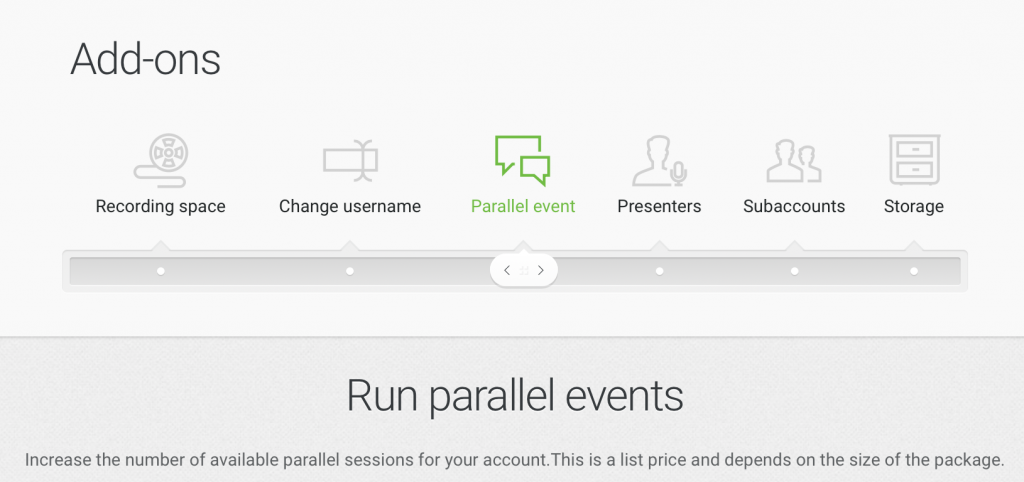
Contact the ClickMeeting sales team at sales@clickmeeting.com to configure a Parallel Events setup that matches the scale of your programme.
How to Integrate ClickMeeting with Learning Management Systems
A virtual classroom doesn’t operate in isolation. Most educational institutions rely on learning management systems to handle enrolment, content delivery, student records, and assignment tracking. ClickMeeting is built to integrate with these systems — not replace them.
The connection between an LMS and a virtual classroom is where operational efficiency lives. Students can access live sessions directly from inside their existing learning platforms. Educators manage invitations, recordings, and follow-up from the same environment they use for everything else. The virtual classroom becomes one component of a broader online learning ecosystem, not a separate tool that everyone has to log into separately.
Moodle Integration: Virtual Classroom Examples from Real Universities
Moodle is one of the world’s most widely used learning management systems, and ClickMeeting integrates directly with it — giving institutions a connected, GDPR-compliant virtual classroom platform that works within existing infrastructure.
Two of Poland’s leading universities provide concrete virtual classroom examples of this in practice.
AGH University of Science and Technology in Kraków has been running virtual classes through ClickMeeting and Moodle since 2016. Their online courses reach up to 200 students per session, and they use the platform’s group features for large-scale exam supervision — a level of classroom management that required both platforms to work seamlessly together.
Gdańsk University of Technology adopted the same approach across multiple faculties. Both universities chose ClickMeeting over competing virtual learning platforms in part because of European data hosting — a compliance requirement that learning platforms based outside the EEA cannot satisfy for EU institutions without workarounds. The ability to integrate with Moodle while meeting GDPR requirements made ClickMeeting the clear choice for online degree programmes where data residency is non-negotiable.
Automation: Online Training That Runs Without You
Live sessions are essential — but they’re also the most time-intensive part of running an online teaching programme. Webinar automation tools let educators build a virtual classroom that delivers value even when they’re not in the room, freeing up live session time for the interactions that actually require a human present.
On-Demand Webinars: Learning Resources Available 24/7
Record any virtual classroom session and publish it as on-demand content. Students can access the recording at any time — whether they missed the live event, want to review a difficult concept, or are working through online courses at their own pace. Students can access learning resources independently, without waiting for the educator to manually share a recording link.
The E Level online education platform uses exactly this combination: live virtual classroom sessions for interactive work, backed by on-demand recordings for review. Their sessions average 300–600 attendees with a 60–65% attendance rate — and the on-demand availability means the content reaches learners who couldn’t join the live session.
Automated Webinars: Scheduled Delivery Without Live Attendance
For content that stays consistent across cohorts — introductory modules, compliance training, onboarding sequences — the automated webinar format runs at a preset time without requiring the educator to be present. The virtual class runs on schedule; the educator uses that time elsewhere.
An educator delivering a ten-week online training course could automate the first two weeks — the standard methodology overview and platform introduction — and reserve their live teaching time for the discussion-heavy sessions in weeks three through ten. The virtual classroom still delivers structured, timed content. The educator just isn’t required to be in the room for every replay.
Analytics: Measure and Improve Every Virtual Classroom Session
Running a virtual classroom without analytics is like teaching with the lights off. You’re delivering content, but you have no way of knowing whether it’s landing. ClickMeeting’s analytics give educators session-by-session data on attendance rates, engagement levels, poll responses, and recording playback — making it possible to see exactly what’s working and what needs to change.
E Level uses analytics to maintain their 85% active engagement benchmark across virtual classroom sessions with hundreds of participants. That number doesn’t happen by accident — it comes from consistently reviewing the data after each session and adjusting pacing, format, and content depth accordingly.
Analytics also matter at the institutional level. If you’re running an online degree programme or a certified corporate training track, the ability to document participation and completion is part of compliance, not just curiosity. ClickMeeting’s reporting gives educators and administrators the data they need for both.
Frequently Asked Questions
Here are answers to the most common questions about setting up and running a virtual classroom.
What is a virtual classroom?
A virtual classroom is an online teaching and learning environment where educators deliver instruction and students participate in real-time via video conferencing and interactive tools. Unlike a recorded video or a static course page, a virtual classroom allows live two-way communication, collaborative activities, and structured classroom management — all within a single platform.
What are the main virtual classroom features to look for?
The most important virtual classroom features include: real-time video conferencing, screen sharing, a collaborative whiteboard, live polls and assessments, breakout rooms for group work, recording capabilities, and analytics. A virtual classroom platform that covers all of these gives educators the full range of tools they need without switching between applications mid-session.
How does a virtual classroom differ from a physical classroom?
A physical classroom puts everyone in one room at the same time and place. A virtual classroom removes those constraints — students around the world can join the same session, recordings extend the reach of every lesson, and automated features handle tasks that would require manual coordination in-person. The tradeoff is that the benefits of virtual learning only materialise when the platform provides genuine interaction tools, not just a webcam feed.
What is Edu Mode and how does it help educators?
Edu Mode is a ClickMeeting feature that structures the virtual classroom so the educator sees all attendees while students can only see the educator — not each other. The educator controls who speaks and when. This reduces distractions, lowers camera anxiety, and replicates the floor-management structure of a traditional classroom in the online environment. It works particularly well for larger groups where open free-for-all interaction would be unmanageable.
Can I use ClickMeeting for an online degree programme?
Yes. ClickMeeting is already used by universities including AGH and Gdańsk University of Technology for online degree programmes. The platform integrates with Moodle and other learning management systems, supports large-cohort virtual classes, and meets GDPR requirements through European data hosting. For institutions where data residency matters, this is a significant advantage over US-based alternatives.
How do breakout rooms work in a virtual classroom?
Breakout rooms split a virtual classroom session into smaller, independent group spaces. Each room operates as its own virtual environment — cameras, microphones, and screen sharing all active. The session organiser can assign participants to specific rooms, move between rooms to observe or participate, and reconvene the full group when the group work phase is complete. ClickMeeting supports this natively within its event room.
How do I choose a virtual classroom platform for my institution?
When you choose a virtual classroom, prioritise: the interaction features available (whiteboard, polls, group rooms), the technical requirements for participants (does it need an install?), data compliance (especially GDPR for EU institutions), and integration with your existing systems. ClickMeeting runs entirely in the browser — no download required for participants — and integrates with Moodle, Zapier, and major CRMs.
Can virtual classroom sessions be recorded and shared afterwards?
Yes. Every virtual classroom session in ClickMeeting can be recorded and published as on-demand content. Educators can share the recording with participants directly or make it available as an on-demand webinar for students to access at any time. This extends the value of every live session and gives students a reliable reference they can return to when studying.
How many participants can join a virtual classroom in ClickMeeting?
ClickMeeting supports up to 40 participants in meeting mode — where everyone can be on camera simultaneously — and scales to thousands in webinar format. For institutions needing to run multiple virtual classroom sessions at the same time, the Parallel Events add-on enables several rooms to operate concurrently from a single account. Contact sales@clickmeeting.com for large-scale configurations.
How does ClickMeeting compare to other virtual classroom platforms?
ClickMeeting is a European virtual classroom platform with GDPR-compliant data hosting in the EEA — a requirement that US-based platforms like Zoom cannot satisfy without additional contractual arrangements. ClickMeeting also combines webinar-grade scalability with classroom-specific features like Edu Mode and analytics, in a browser-based interface that requires no installation. For educators and institutions that need both compliance and functionality, it’s a purpose-built alternative to general-purpose conferencing tools.
|
Build your virtual classroom today — start a free trial or speak with our education team about your specific needs. |